
6. AN Configuration: Values.yaml
First, we need to consider whether we've decided to work with secrets (remember rename the file to values.yaml), or not, as the file format may vary slightly.
First of all, we will check that the file header starts as shown in the image:
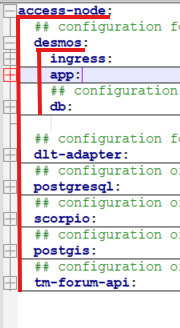
Now let’s configure all the blocks.
Ingress
Modify the ingress hots and ensure your domain is properly exposed.
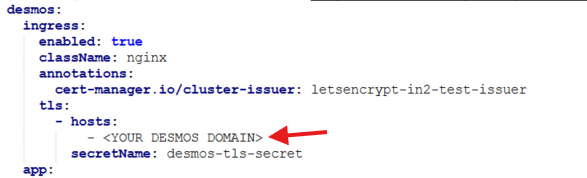
For example this is our domain: desmos.dome-marketplace-lcl.org
App
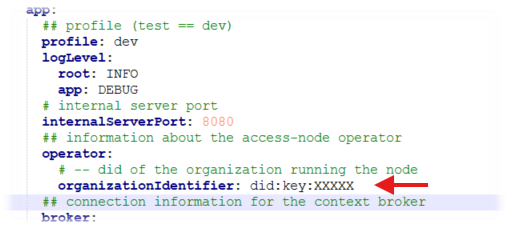
The next thing to check is that we have specified your DID key in the following field:
Next, we will need to review the configured domains:

We will need to configure your protocol (in this case it was http but usually it would be https) and the domain of our machine, the URL with which it will be identified.
The next step is to configure the private key, which, if we are working with secrets, will look like this:
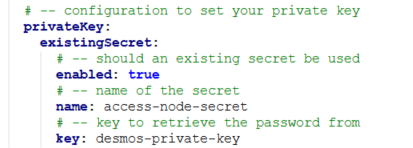
Or without secrets:

DB
The next step will be to configure our databases.
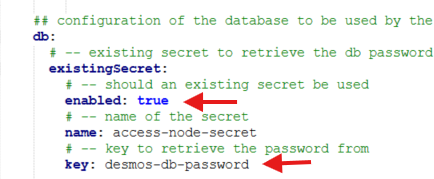
Here we need to configure our database host; this example uses an embedded database. We'll also need to specify our database details and whether or not we're using secrets.

As you can see, without secrets, we will need to specify our database password and disable secrets.
DLT-adapter
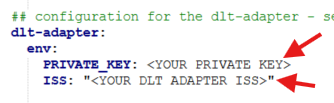
The next block is the DLT block; here we will need to configure the data obtained with the dome key generator:
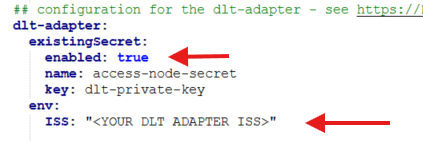
In case of working without secrets:
Postgresql
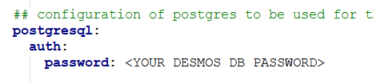
For the configuration of our Postgres, we must take into account the configuration of the secrets.
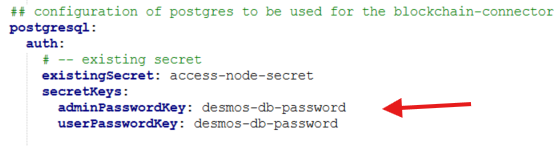
And for the case of no secrets:
Scorpio
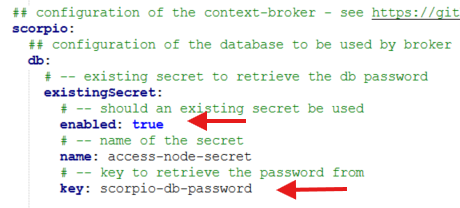
For the Scorpio configuration:
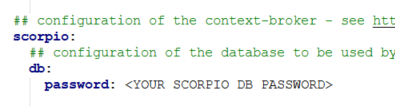
And for the configuration without secrets, we would only have to configure the password as shown in the image:
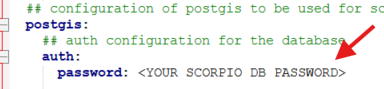
Postgis
The same procedure applies to secrets;.
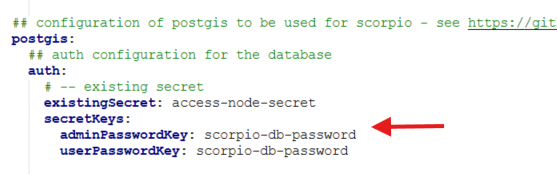
And without secrets:
This would be all the configuration to take into account to prepare our AN to be able to perform the synchronization tests.
Logically, there are more blocks in the file that we haven't mentioned, but we suggest not editing them without having the necessary knowledge.
No Comments